
Brief Description #
Let your buyers subscribe to a product even when the product is out of stock using the Notifima Plugin . Once subscribed, customers will get an email notification when the product becomes available again .
Requirements #
Admin Configuration #
You just need to go to the admin dashboard and navigate down to Notifima and simply click on Settings submenu.
After that the admin just needs to configure the following settings –
Automation #
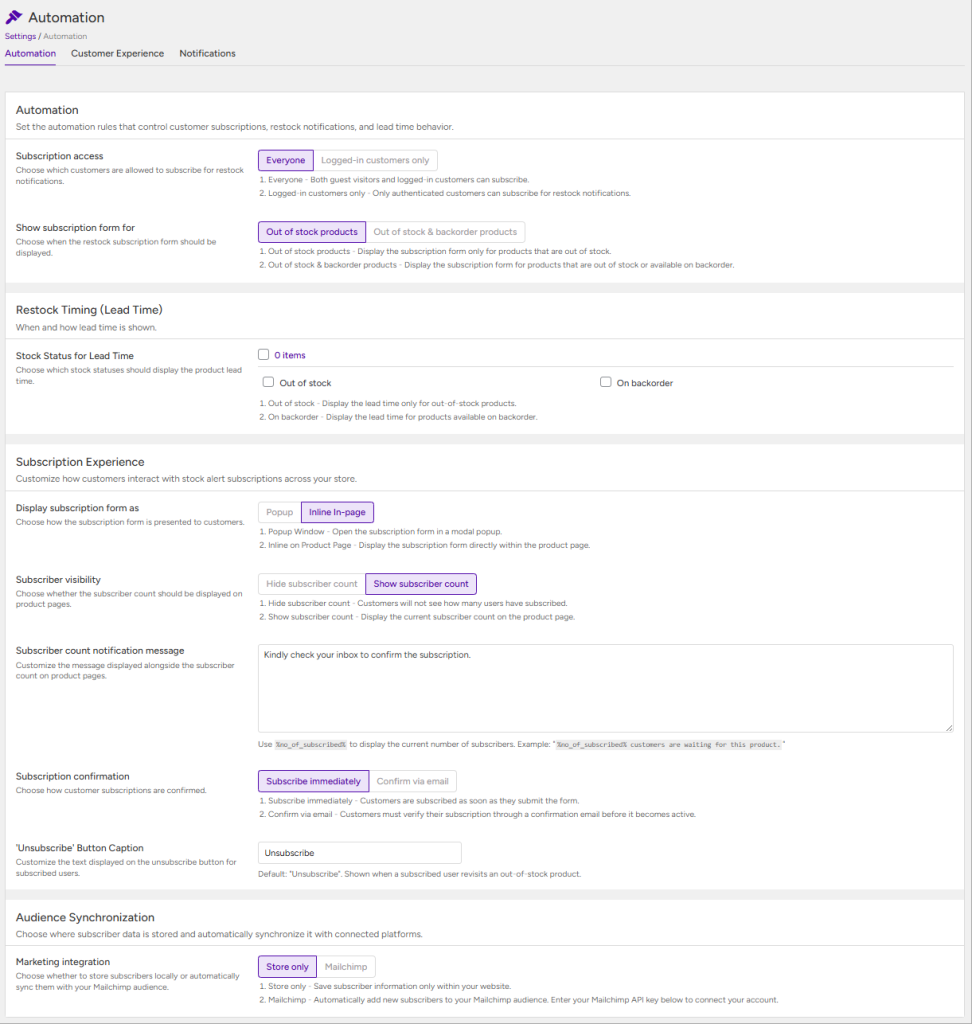
Here you get options to customize the Notifima form –
- Subscription Access: Choose which users can subscribe to out-of-stock products.
- Everyone: Allows both logged-in and guest (non-logged-in) users to subscribe.
- Logged-in Customers Only: Restricts subscriptions to users who are logged into the site.
- Show Subscription Form for:Here, the admin can choose whether the subscription form should appear only for out-of-stock products or for both out-of-stock and backordered products.
- Stock Status for Lead Time: Select the product stock statuses for which lead time messages should be displayed on the frontend product page.
- Lead Format: Choose how lead time messages should be displayed.
- Static: Displays the same lead time message for all products. To set different messages for individual products, Notifima Pro is required.
- Dynamic: Allows different lead time messages to be configured for individual products. This feature is available in Notifima Pro.
- Display subscription form as : This setting allows the admin to control how the subscription form is displayed on the frontend, either as an inline form or as a pop-up.
- Subscriber Visibility: Choose whether to display the number of users subscribed to an out-of-stock product on the product page.
- Hide Subscriber Count: The subscriber count will not be displayed.
- Show Subscriber Count: Displays the total number of subscribers interested in the out-of-stock product.
- Subscriber count notification message: Customize the message displayed alongside the subscriber count to inform visitors how many users have subscribed to the out-of-stock product.
- Subscription Confirmation: Enable this option to require users to confirm their subscription through a second verification step (double opt-in). This feature is available in Notifima Pro.
- ‘Unsubscribe’ Button Caption: Enter the text that you want to be displayed for the Unsubscribe button.
- Marketing integration : This setting allows you to choose whether subscriber data is stored locally or automatically synchronized with your Mailchimp audience. The Mailchimp integration feature is available exclusively in Notifima Pro.
Customer Experience #
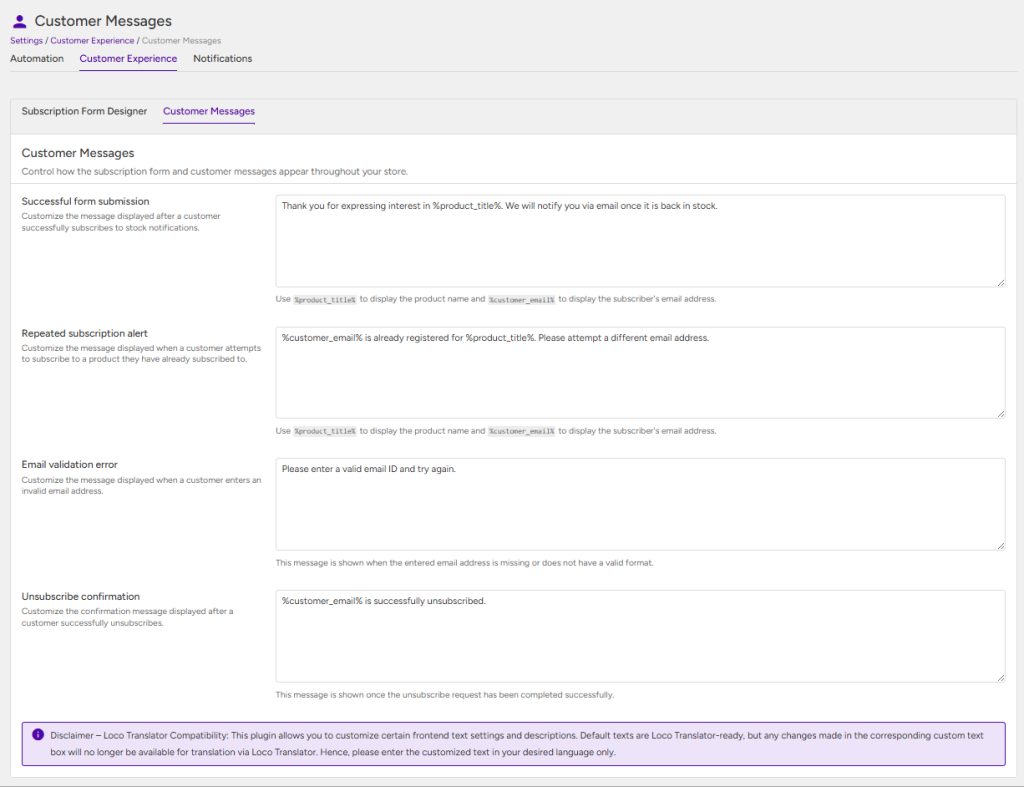
In this section, you can go to the Custom Messages tab to customize all the prompt messages displayed after the subscription form is submitted –
- Successful Form Submission: Customize the alert message displayed upon successful form submission.
- Repeated Subscription Alert: Define the alert text to be shown when an email that is already registered is submitted for repeated subscription.
- Email Validation Error: Specify the text to be displayed in case of an email validation error, indicating an invalid email format.
- Unsubscribe Confirmation: Provide the text for confirming successful unsubscription from a product to which the buyer was previously subscribed.
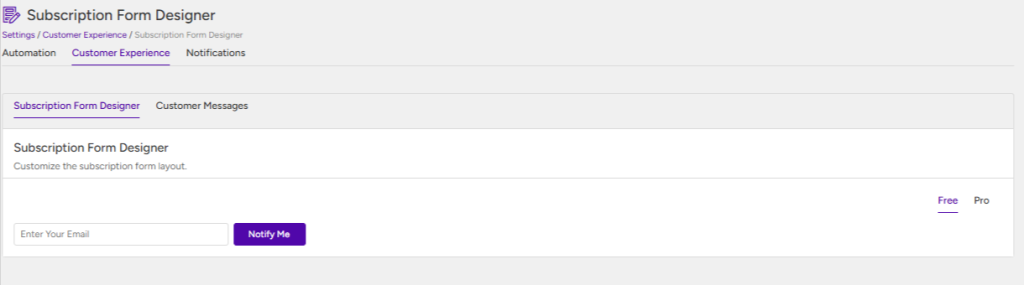
Under the Customer Experience tab, you’ll find the Subscription Form Designer, where you can customize the design of the subscription form. Note: The Notify Me button inherits its styling from your active theme.
Flow from the customer end #
Once the admin has done the configuration of all the settings the customer will get option to subscribe for a out of stock product from the frontend by putting their email address.
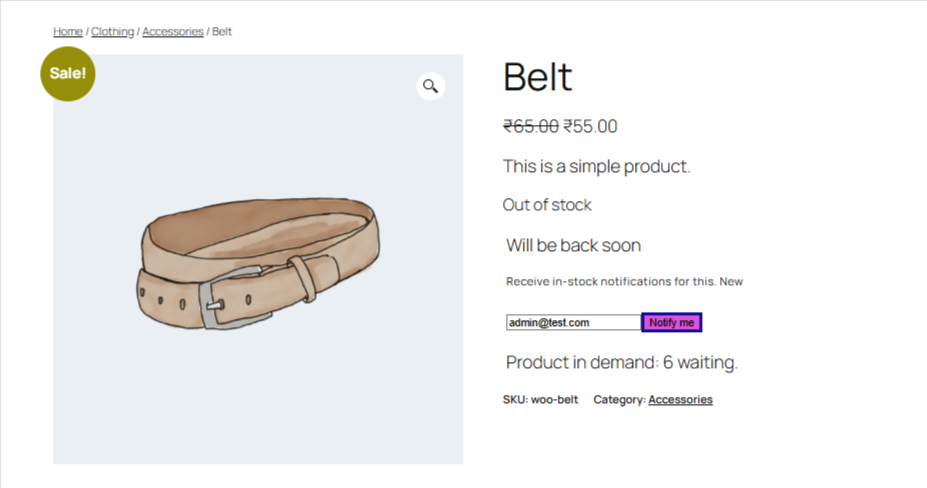
Please note – Upon subscribing to an out-of-stock product, the user will receive an email notification. Additionally, when the product becomes available again, another email will be sent to notify the user.


